Follow this guide from top to bottom for your first property. You will create a private draft, check it, publish the auction, follow its offer rounds and purchase phase, and complete the legal sale handover.
Open the real service: MyOffer workspace. Screenshots use English button labels; choose English in the language menu if you want the screen to match.
About the screenshots: The empty workspace was captured from the live service. Property details, buyers, amounts and documents are training samples captured in earlier application versions. Some labels and round settings differ from new campaigns. Use the current instructions and the property’s published rule version; replace every sample value with verified information. Dates in the pictures are examples.
Before you start
Have these ready:
The route for new campaigns: Private draft → Round 1 → Round 2 for all qualifying buyers → Purchase entry when the target is reached, or a 24-hour top-three Round 3 if it is not → Purchase phase and protected paperwork → Legal sale completion. An offer result does not transfer ownership.
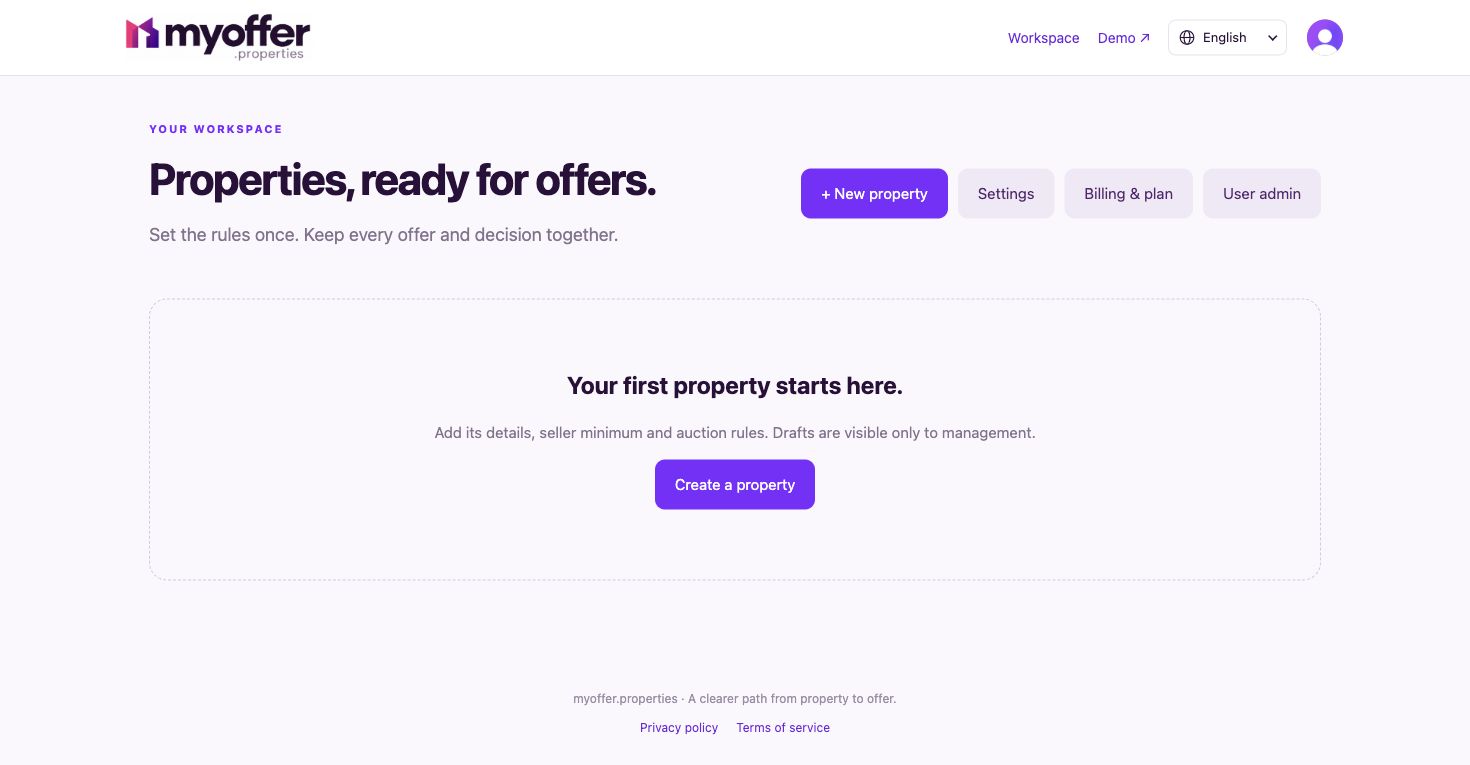
1 Sign in and open your workspace
- Open MyOffer workspace.
- Use an available sign-in method, such as Google or email and password.
- New owner? Use Create your account, verify your email and wait for the platform administrator to activate your account.
You should see: Your workspace, with + New property, Settings and Billing & plan. One owner can manage several properties. The User admin link in this screenshot is for the platform super admin.
2 Complete your workspace settings once
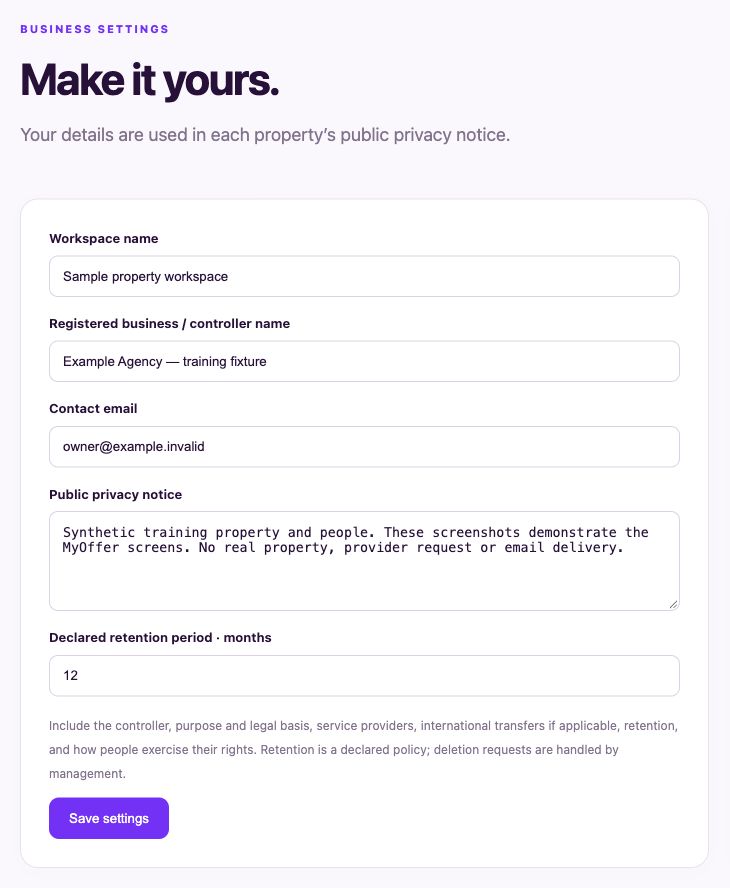
- Click Settings.
- Enter your Workspace name, Registered business / controller name and Contact email.
- Complete the Public privacy notice and Declared retention period · months.
- Click Save settings, then ← Workspace.
You should see: Your saved details when you reopen Settings. These details appear in your properties’ public privacy information.
The retention field records your policy. It does not automatically delete records.
Open Billing & plan if you need an active subscription or an unused single-property credit before publication. A single-property 90-day period starts at first publication and continues while the property is unpublished.
3 Create the property and fill in its details
- Click + New property or Create a property.
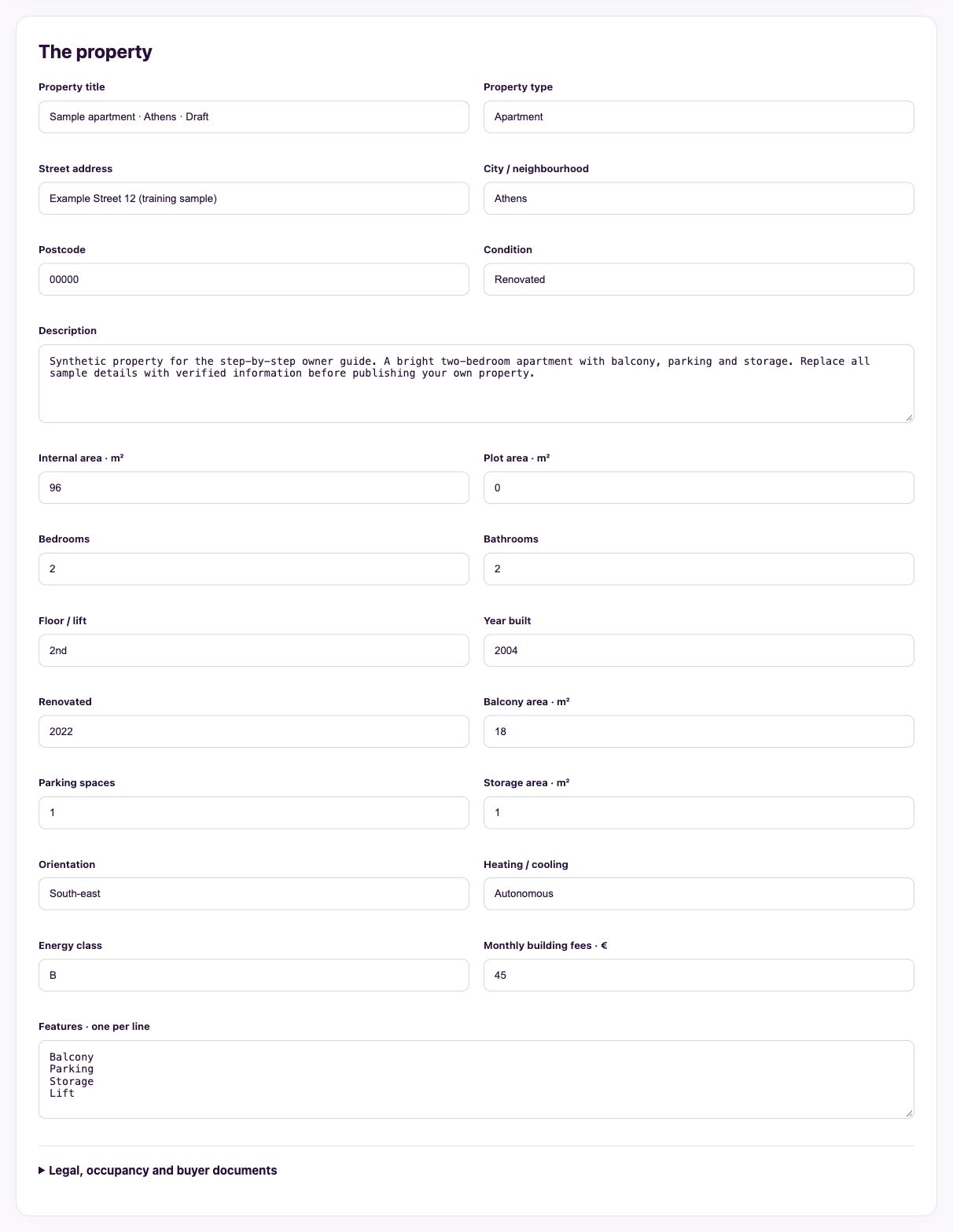
- Enter the property title, street address, city/neighbourhood, seller name/email and agent/contact details.
- Fill in the description and physical details. State defects and known limitations plainly.
- Expand the legal/occupancy section and choose Current occupancy from the dropdown: No tenant, Owner occupied — no tenant, Tenant in place or Other occupancy. Add any handover or occupancy details in the optional notes. Existing occupancy text stays in those notes. Complete the remaining information a buyer needs.
Use this checklist to build a useful buyer pack:
| Area | What to include |
|---|---|
| Property | Type, condition, internal area, rooms, floor/lift, construction and renovation years |
| Extras | Balcony, plot, parking, storage, orientation, heating/cooling, energy class, monthly building fees |
| Legal and possession | Ownership/title, encumbrances, permits/regularisation, use/zoning, occupancy, tenancy and vacant possession |
| Purchase | Buyer expenses, included fixtures/items, documents, viewing arrangements, funding requirements |
| Contact | Agent/contact name, email, agency/office and phone where applicable |
You should see: Your entered details in the setup form. Seller contact details and private agreement fields are kept out of the public property page.
4 Set the minimum and fixed target prices
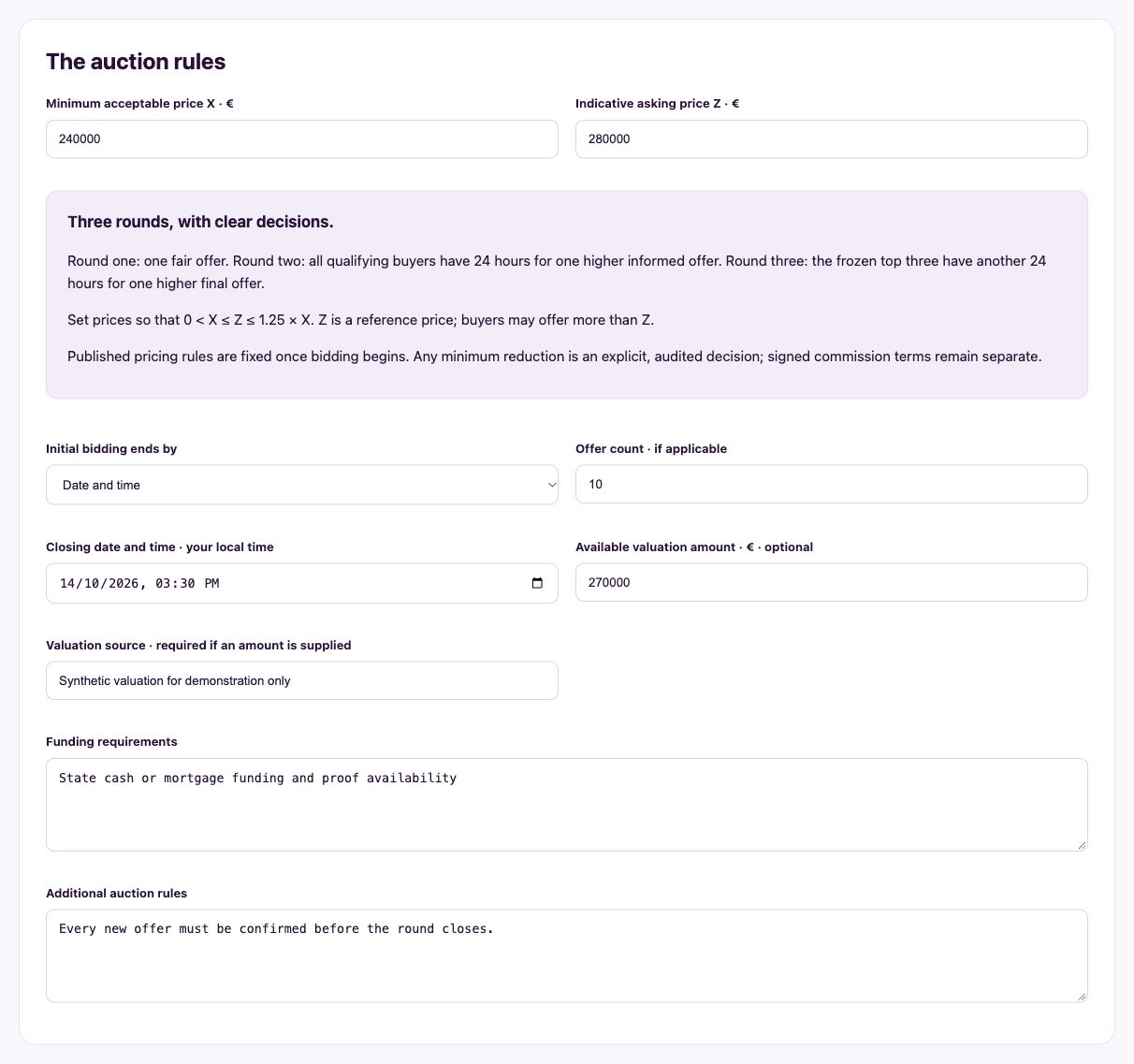
- Enter Minimum price, the lowest acceptable offer.
- Enter Target price, the amount that opens the purchase phase when reached by a confirmed qualifying offer.
- Check the reciprocal range shown beside each field. These hints do not change your other price automatically.
Use whole euros. The minimum must be positive, no greater than the target, and the target cannot exceed 125% of the minimum. For example, minimum €100 permits a target up to €125; target €125 requires a minimum of at least €100. Minimum €101 permits a target up to €126. Offers above the target are allowed.
For new campaigns, Round 1 closes at 10 confirmed qualifying offers OR 14 days from publication, whichever comes first. Pending offers and confirmed below-minimum offers do not count towards ten. A confirmed offer equal to the minimum qualifies.
The minimum is public. The target is fixed at publication and stays private in Round 1. All qualifying buyers see it together when Round 2 opens, along with the frozen first-round information and available valuations with their sources. If you provide a valuation, identify its source.
You should see: Valid prices saved without either amount being silently corrected. Older campaigns keep their configured date/count closing rule and asking-price disclosure.
5 Record the signed seller agreement
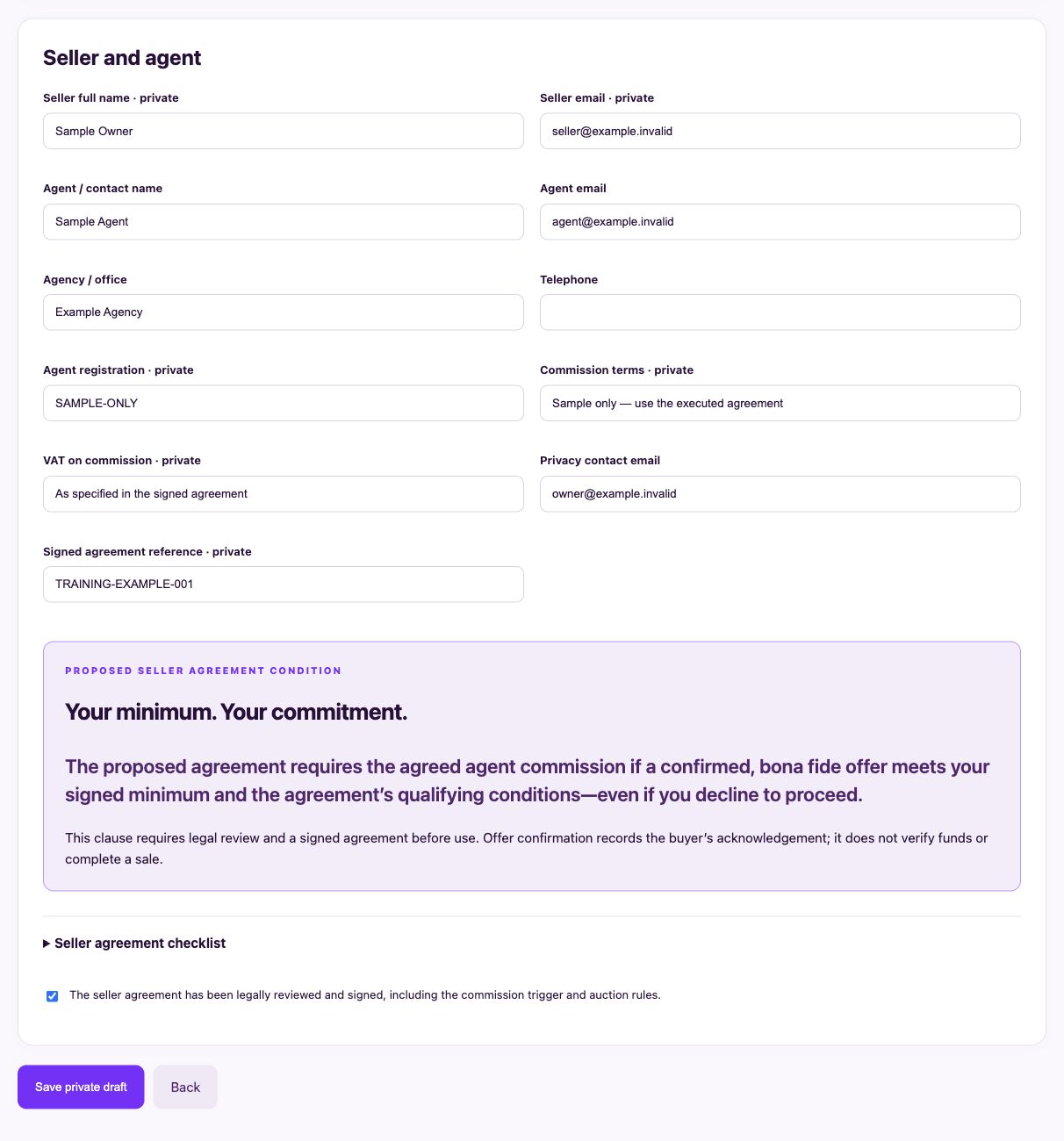
- Complete the seller/agent agreement fields relevant to your property.
- Enter Signed agreement reference · private.
- Tick the checkbox confirming that the seller agreement has been legally reviewed and signed, including the commission trigger and auction rules.
You should see: A completed agreement reference and the checked confirmation.
Keep the executed agreement securely with your records. The proposed clause on screen is not a substitute for that signed agreement. MyOffer records when an offer reaches the signed threshold; the agreement determines commission entitlement. Later reductions of the auction minimum do not rewrite the signed commission terms.
6 Save the draft and upload your media
- Click Save private draft before uploading files.
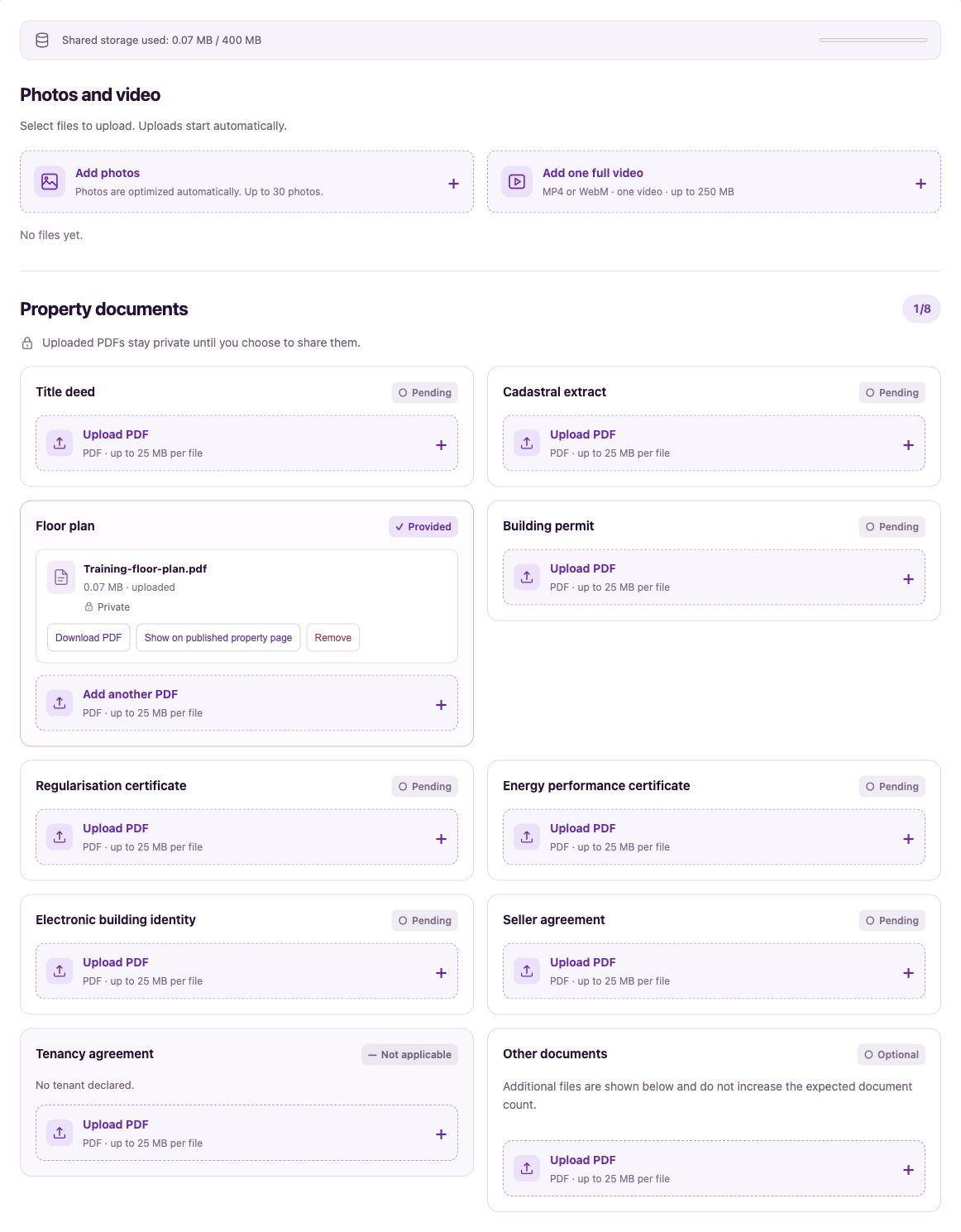
- In the always-visible Photos and video section, click Add photos and choose your images. Uploading starts automatically.
- If needed, click Add one full video and choose the video. This also starts uploading automatically.
- Wait until every selected file shows uploaded. You do not need a separate upload button.
| File type | Limit per property |
|---|---|
| Photos | Up to 30 JPEG, PNG or WebP images |
| Video | One MP4 or WebM, up to 250 MB |
| PDFs | Up to 20, up to 25 MB each |
| All uploads together | Up to 400 MB |
The site prepares photos for web viewing; the first photo becomes the cover. Direct uploads live in MyOffer’s Cloudflare storage. You do not need a Google Drive or GitHub upload step.
You should see: Each file in the upload list with uploaded status. Retry completion or remove unfinished uploads before publishing.
7 Prepare the property dossier and its document access
- Find the always-visible Property documents section, separate from photos and video. Each document type has its own row and status.
- Beside the document you have, click Upload PDF and select its file. Uploading starts automatically, and the file is assigned to that document type.
- Use Add another PDF when one document type needs more than one file. Use Other documents for PDFs that do not fit a listed type.
- Wait for the document to show Provided. A pending or incomplete upload does not count. Notes and agreement references do not count as uploaded PDFs.
- For a new dossier auction, open Prepare the property dossier. Write the short public legal and technical summaries and the full case notes. Select each supporting PDF from the files uploaded to this property.
- Record each review’s professional name, relevant role, registration or credential, review date and uploaded signed report. Confirm that the selected PDF is that professional’s signed report. Legal cases need a lawyer or notary; technical cases need an engineer. Both complete signed case reports are required before publication.
- For each document, choose missing, available with review pending, reviewed with no issues reported, or available with a caveat. Disclose short public caveats. A PDF upload or checkbox alone cannot make a document green: the supporting PDF, complete professional review, signed report and both case reviews must be present and validated.
- Click Download PDF to check the uploaded file, then Save private draft. Private draft edits can be incomplete while you prepare the reports; publication checks are stricter. The preparation checklist and exported PDF remain a record of supplied information and uploaded filenames, not an independent legal certification.
New target-price campaigns release information in stages:
| Buyer stage | What the buyer can see |
|---|---|
| Before making an offer | Short legal and technical summaries; expected documents’ green, amber or red labels and short public caveats |
| Confirmed Round 1 offer at or above the minimum | Full legal and technical case notes and safe professional review attribution; no PDF names, links or downloads |
| Entered the purchase phase | The choice to Unlock without securing, releasing the protected PDF folder without a commitment payment; paid securing is available only after the provider service is approved and activated |
A qualifying Round 2 offer alone does not unlock PDFs in the new target-price model. The buyer must be a purchase-phase entrant and choose the free unlock or, once activated, complete the commitment flow. A free unlock does not secure purchase priority.
The planned refundable commitment remains 0.5% of the confirmed offer, never a fixed fee. New campaigns have a planned 48-hour securing window after bidding ends. Purchase invitations may open during Round 2; they do not start this clock early. A separate 72-hour purchase-check and full-refund-initiation period would start from provider-confirmed commitment receipt. Trustap is unavailable, so no commitment payment is collected, no payment is due and no payment-dependent clock is running.
Earlier premium-dossier campaigns retain their published policy: confirmed qualifying Round 2 unlocks their PDFs, and any frozen planned engagement duration remains unchanged. New campaign rules do not rewrite an older dossier snapshot.
If there is no tenant, choose No tenant or Owner occupied — no tenant in the Current occupancy dropdown. You do not need to type a special phrase. The tenancy agreement then shows Not applicable and is excluded from the progress total, including in the preparation PDF. An existing uploaded tenancy agreement remains listed as provided. Optional occupancy notes keep any previous text; the dropdown determines the current status.
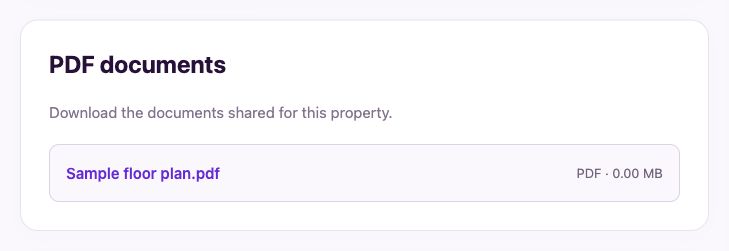
Older campaigns keep their agreed document-sharing rules. Only for those legacy campaigns, Show on published property page makes a selected PDF publicly downloadable; Keep private removes that public choice. New dossier campaigns use staged access instead. Keep personal IDs, private seller agreements and unredacted financial records outside the buyer dossier.
You should see: The staged-access explanation beside new dossier PDFs, and the document review controls below the uploads. Property managers can download their own files. Published dossier disclosures and normal upload editing are locked; older campaigns retain their original public/private PDF labels.
8 Review everything and publish
- Check the property details, minimum and target, files, short public disclosures, full notes and signed legal/technical review references. Preview the public dossier and check every green, amber and red status and caveat.
- Check your workspace privacy information and signed agreement confirmation.
- Click Save private draft again if you changed the form.
- Return to the workspace and click the property’s Open property ↗.
- Click Publish auction and confirm.
You should see: Status OPEN, a Buyer page ↗ link and the visitor QR section.
Property information progress updates automatically as you enter details and upload files. Open View information checklist to see which information is provided or missing. Export preparation PDF downloads the current preparation summary, including unsaved form edits. This measures information provided; it does not validate its accuracy or the legal documents for you.
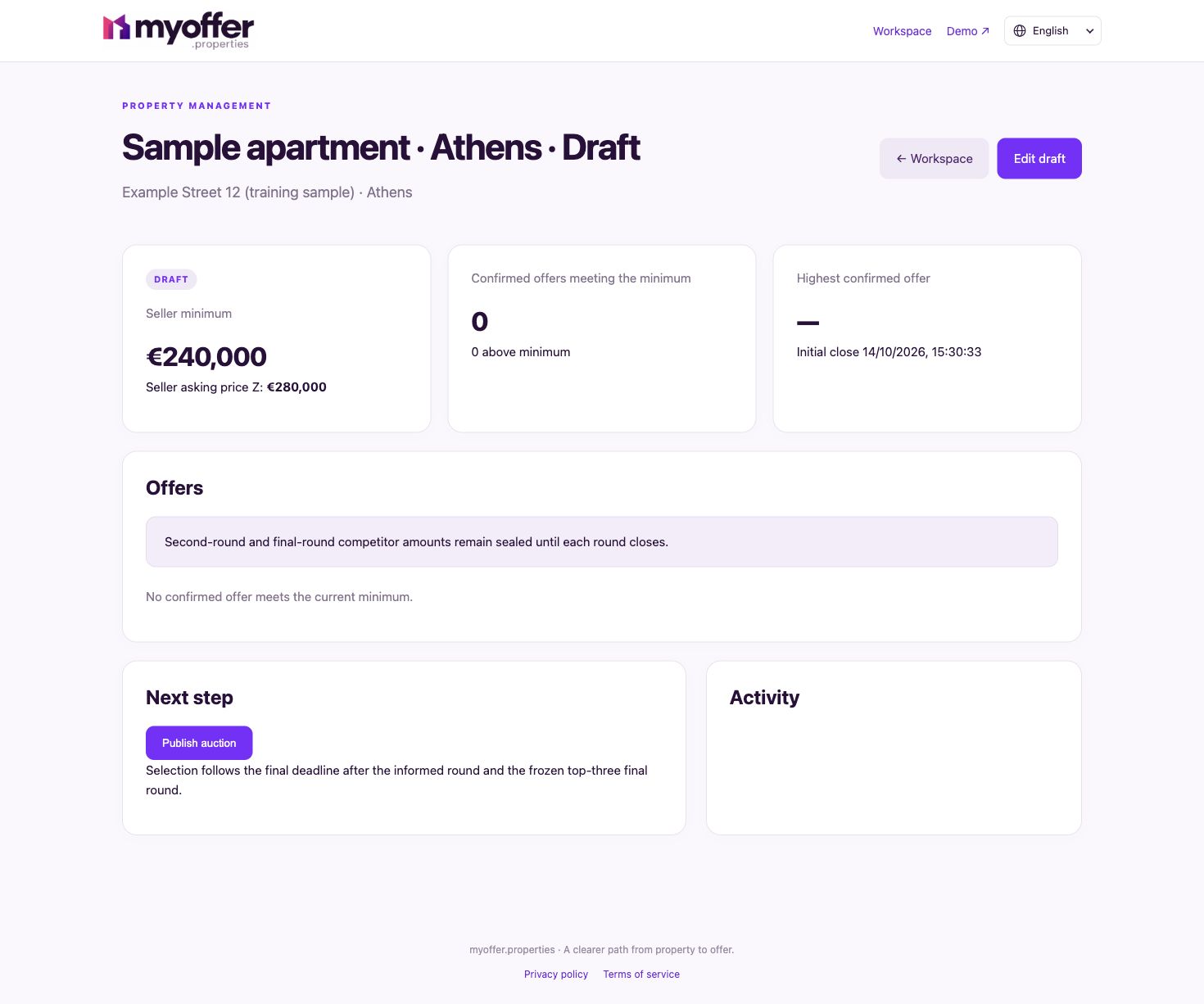
9 Check the buyer page and print your visitor QR
- Click Buyer page ↗ and check the property, photos, video, public dossier summaries and caveats, minimum, rules and contact/privacy information. For a new target-price campaign, the target, valuation information, full case notes and PDF names/downloads must be absent from this public Round 1 page. Older campaigns retain their agreed disclosure and shared-PDF rules.
- Return to property management.
- Click Print visitor QR and print the sign.
- Scan your printed QR with your phone. It should open the correct property’s signup page.
- Place the sign at the apartment exit for visitors.
- Use Manage viewings to prepare the property’s calendar. Agents and buyers can book available slots from Book a viewing on the published property page, without an offer, paid manager account or separate manual confirmation. Keep booking contacts private and use the booking reference when arranging a change.
You should see: Your own property title and signup form after scanning.
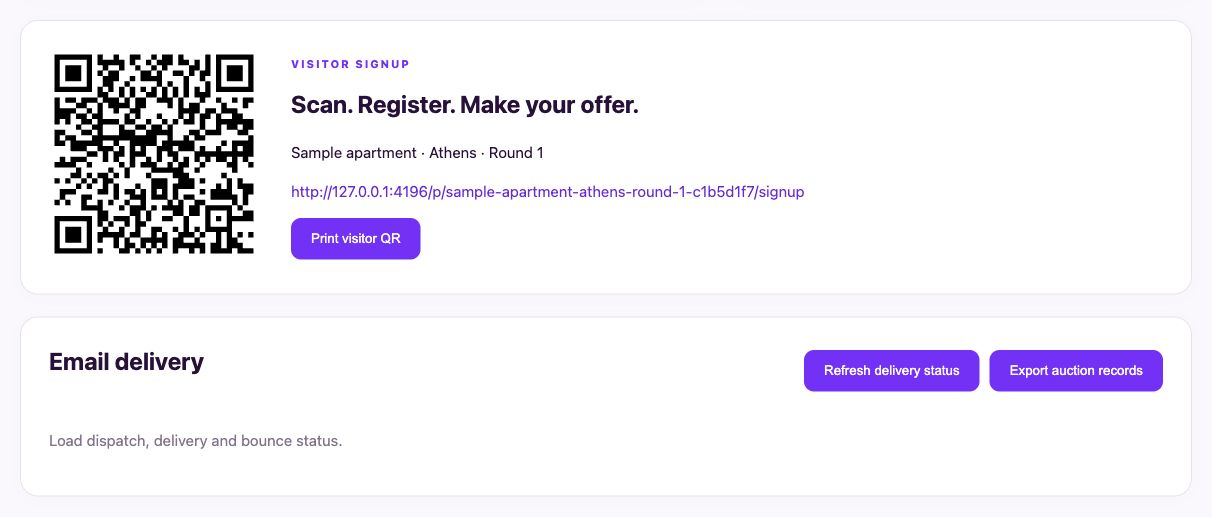
10 Understand what visitors do
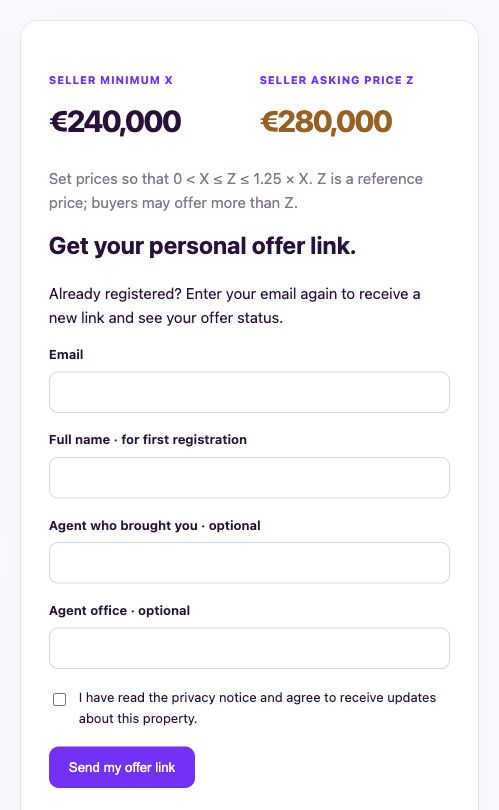
- The visitor enters their email and full name on first registration.
- They may add the agent and office who brought them.
- They read the privacy notice, tick the consent checkbox and click Send my offer link.
- In their email, they click Make your offer and submit the amount, funding, timing and conditions.
- They confirm that specific offer using the email confirmation link or the available SMS option before the round closes.
You should see: A confirmed qualifying offer in management once confirmation succeeds and the amount is at least the seller’s minimum.
Submitting and confirming are separate steps. Unconfirmed offers do not count. The amount and conditions are fixed at submission. An expired confirmation can be renewed for that same offer while its round is open.
If a visitor loses the access email, they enter the same email on the signup page to receive another link. That lets them view their status; it does not create another initial-offer opportunity.
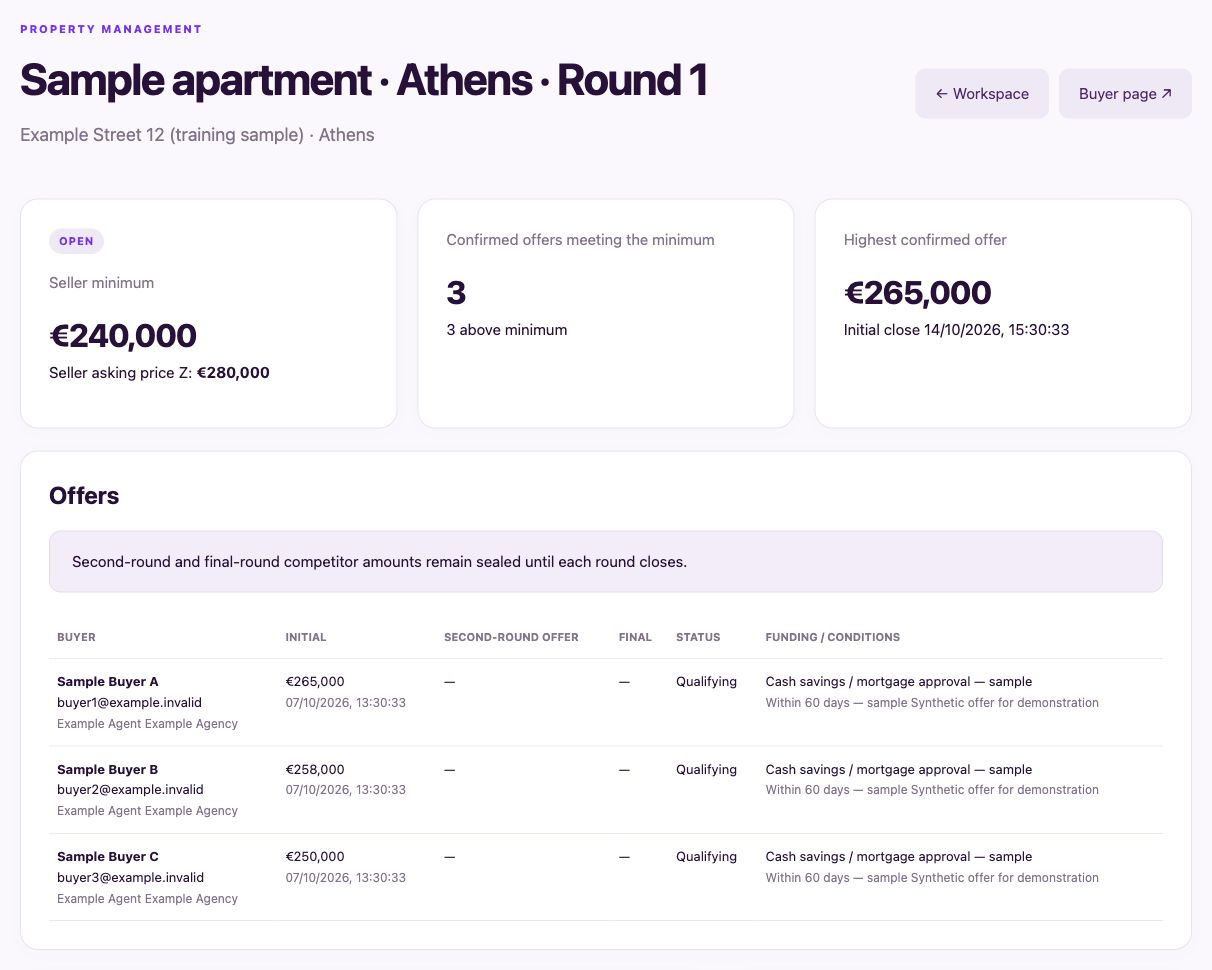
11 Monitor Round 1
- Open the property from your workspace.
- Check Confirmed offers meeting the minimum, the highest disclosed confirmed amount and the Offers table.
- Check Activity for events.
- Under Email delivery, click Refresh delivery status. If a failed message shows Reissue email, use it after checking the issue.
- Let Round 1 close at ten confirmed qualifying offers or 14 days from first publication, whichever comes first. Follow the actual deadline shown if publication has been paused.
You should see: ROUND TWO if at least one confirmed offer qualifies. With no qualifying offer, the auction concludes Unsuccessful and outcome emails are queued. Export and unpublish it using Step 16.
Below-minimum offers do not qualify and are hidden from ordinary owner and seller management. New campaigns do not offer discretionary early closing. Older campaigns retain their published closing conditions and available controls.
12 Follow Round 2 and target-price entry
No extra round setup is required.
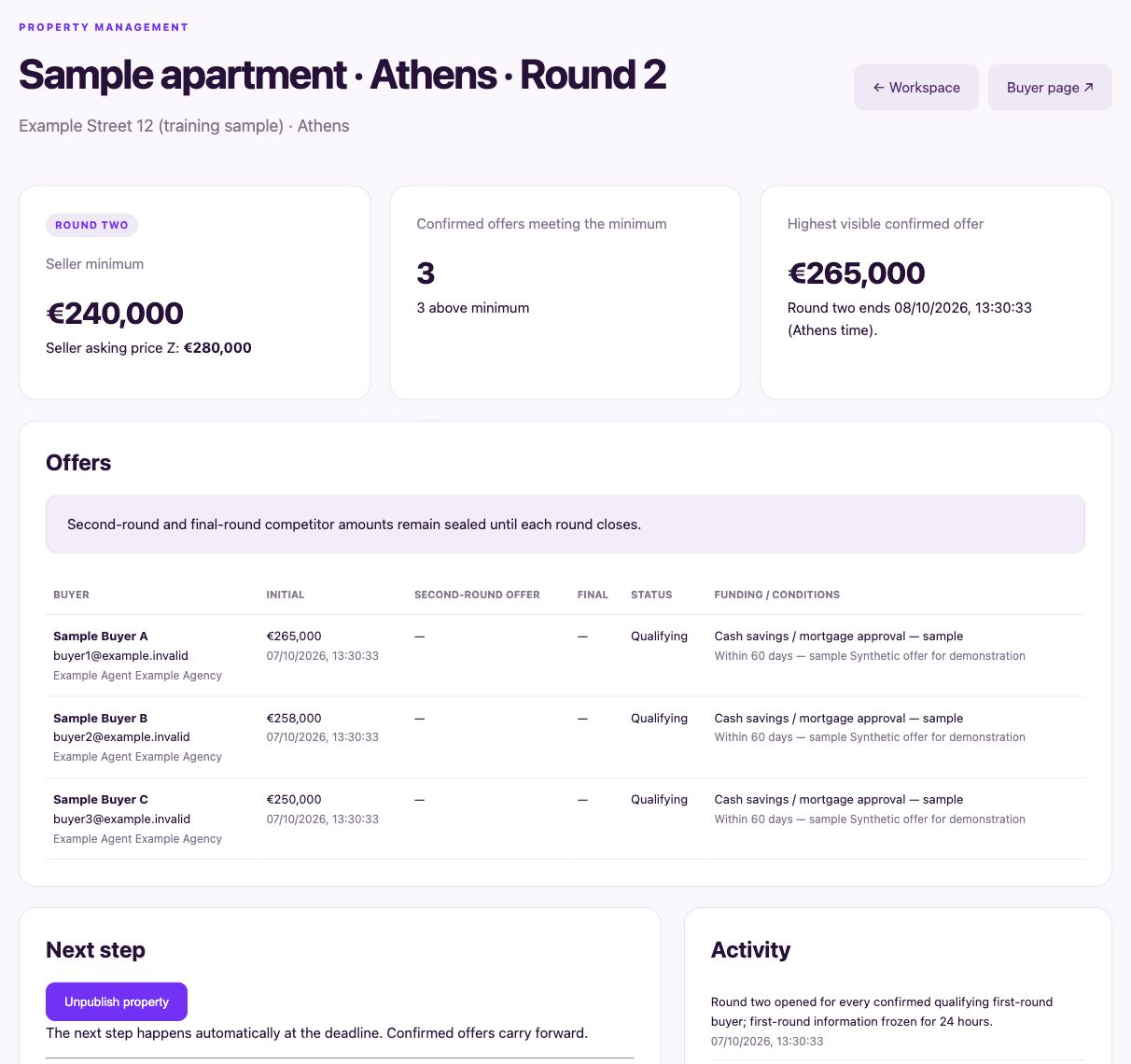
- Every buyer with a confirmed Round 1 offer at or above the minimum is invited.
- Round 2 lasts up to 48 hours, closing sooner if every participant confirms one higher second-round offer.
- Each participant sees their frozen first-round rank, the highest qualifying amount, anonymous qualifying amounts, seller minimum and fixed target, and sourced valuation information.
- New competitor amounts stay sealed while the round is open. Do not disclose sealed amounts or buyer identities.
- A previous confirmed offer carries forward if a buyer does not confirm a higher one. Expired confirmation renews the same immutable submission while the round remains open.
- Every confirmed Round 1 offer already at or above the target enters the purchase phase when Round 2 opens. A newly confirmed Round 2 offer reaching the target also gives that buyer purchase entry while other participants continue offering.
You should see: The Round 2 deadline and, for eligible buyers, their purchase-phase invitation. Entry alone does not secure priority. If any confirmed eligible offer reaches the target, there is no third offer round.
13 Follow Round 3 only when the target was not reached
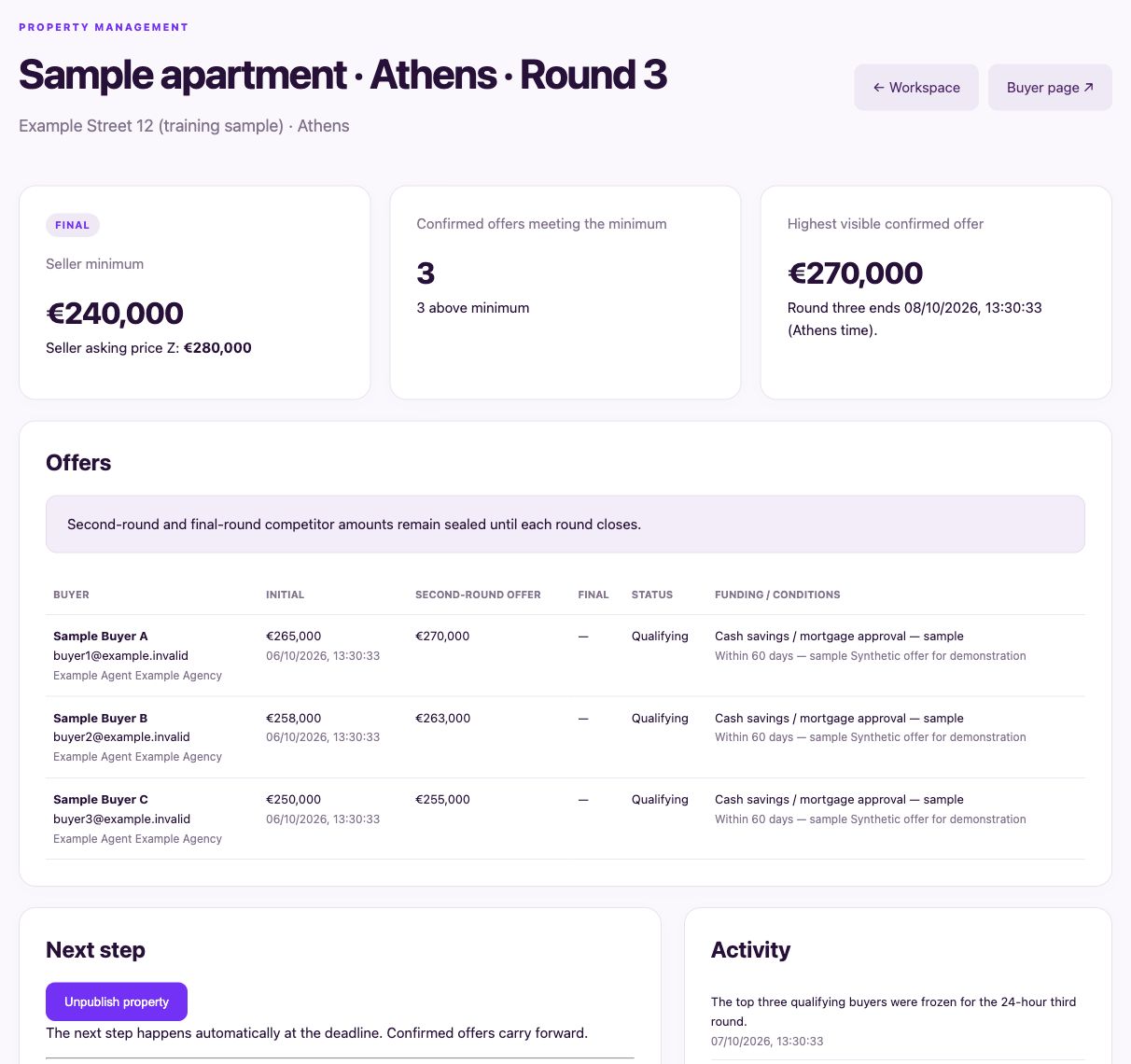
If no eligible confirmed offer has reached the target when Round 2 closes, MyOffer freezes the top three qualifying buyers for Round 3. If fewer than three qualify, those available are invited. Ranking uses each buyer’s highest confirmed amount.
- Round 3 lasts 24 hours.
- Each invited buyer may submit and confirm one higher final offer.
- A confirmed final offer at or above the target gives that buyer immediate purchase entry. Other invited buyers continue offering until the 24-hour deadline.
- New competitor amounts remain sealed until closing.
- The previous confirmed offer carries forward if no higher final offer is confirmed.
- Equal confirmed amounts follow the server confirmation order of that amount.
You should see: The frozen shortlist and final deadline, with immediate purchase invitations for any confirmed target-reaching final offers. If nobody reaches the target, the highest qualifying confirmed offer enters the purchase phase at the deadline. Target entry does not close Round 3 early, secure priority or complete a sale.
Transitions run automatically. The screen can update a few minutes after a deadline; reload it before assuming something is stuck.
14 Check purchase entry, paperwork and priority
- Open property management and check the purchase-phase status and candidate order.
- Check each relevant buyer’s confirmed amount, funding, timing and conditions.
- Check Email delivery for the invitation and result messages.
- Eligible purchase entrants can choose Unlock without securing to open the protected PDF folder without payment. This does not secure priority or start a payment deadline.
The planned paid alternative is a 0.5% commitment. It requires a real approved payment adapter, implemented closing controls and verification of the entire flow. Provider approval alone does not activate it. Only one payment attempt may be active at a time. Provider-confirmed payment would secure priority and prevent competing commitment payments for that position; a later higher offer would not displace that secured position. The planned securing window is 48 hours after bidding ends, separate from the 72-hour clock after provider-confirmed receipt.
Trustap is unavailable. No commitment payment is due, no payment grants priority and no payment-dependent countdown runs. Do not collect substitute payments or treat an unavailable button, acceptance or free document unlock as a secured position.
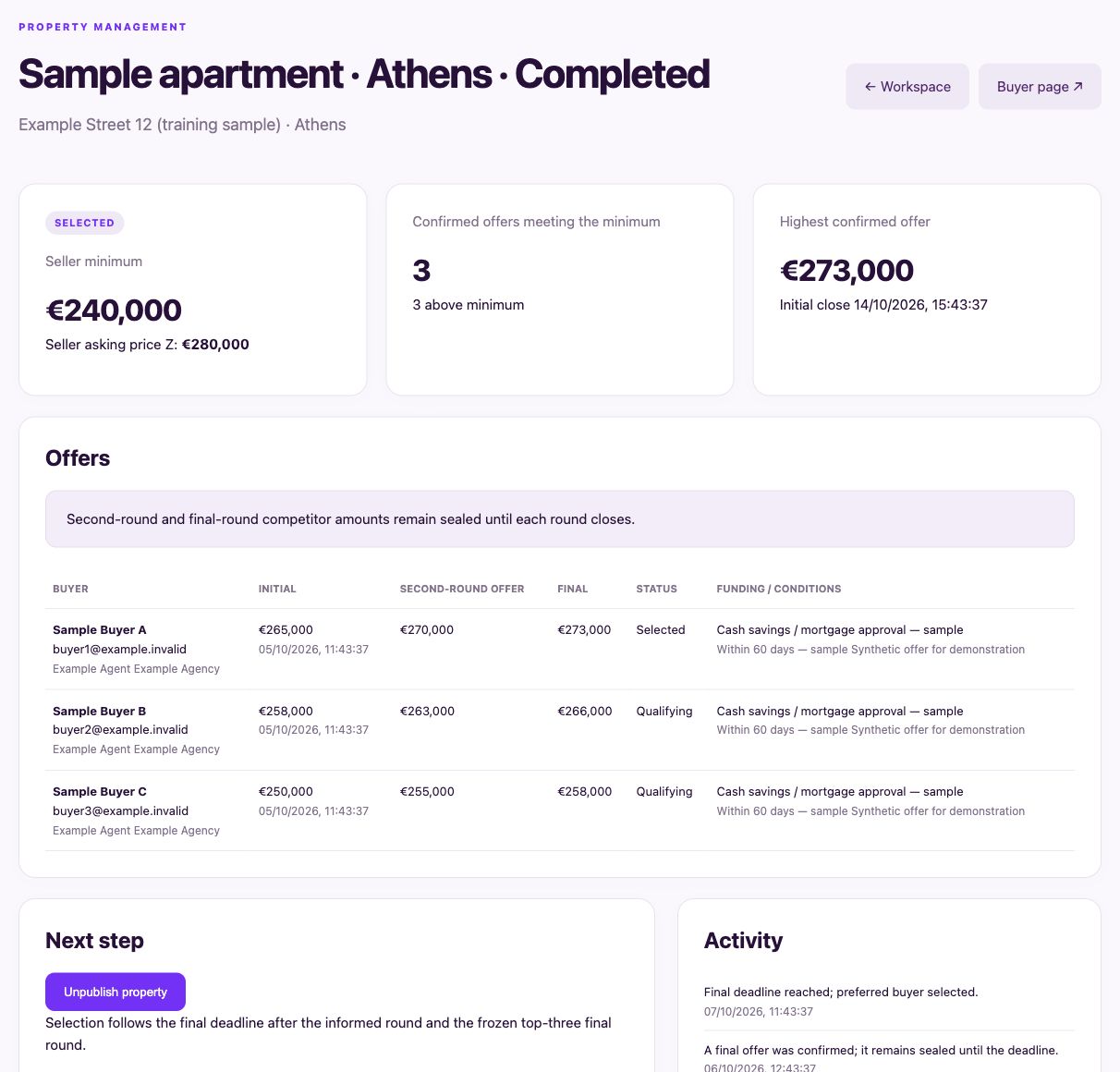
Purchase entry, priority and selection are process statuses. Legal ownership transfers through the completed sale process.
15 Complete the legal sale and record the outcome
- Coordinate the buyer, seller and appropriate legal and technical professionals.
- Review the full dossier and any disclosed caveats. Arrange financing and the signed property agreements outside MyOffer.
- Any property prepayment must use the parties’ separate agreement and verified external payment instructions. It does not inherit the 0.5% commitment’s full-return policy.
- Keep the prepayment contract, evidence of any external transfer and the seller’s receipt acknowledgment and acceptance with the transaction record. A file upload alone does not prove that funds arrived.
- Complete the final sale contract, payment and property handover under the legal process. Record final sale completion separately from prepayment acceptance and retain the executed documents securely. Seller receipt and acceptance of prepayment do not confirm that a final sale contract has been signed.
Private closing controls require an existing provider-confirmed secured position. Free folder access does not open a closing case. The buyer can upload the agreed prepayment contract and record the external transfer as Not sent, Pending, Sent or Unknown. Only the seller can acknowledge both receipt of the external prepayment and acceptance of the contract. A transfer declaration is evidence for review, not proof of bank receipt. These controls remain unavailable to unpaid entrants; no substitute payment or client declaration can activate them.
Payment-dependent controls also require a real approved payment adapter and end-to-end verification; provider approval alone is insufficient. Contract-upload email reminders are restricted to canonical funded cases and their recorded deadline. They do not run for unpaid entrants. General SMS reminders remain unavailable until separately configured. Under the required activated policy, a secured buyer has 72 hours from provider-confirmed commitment receipt for purchase checks. The provider initiates return of the full 0.5% commitment at 72 hours, without buyer deductions or a required explanation, even if the buyer withdraws. Bank credit can take longer. A sale dispute or review hold must not delay this separate refund initiation.
If prepayment has been transferred and the contract uploaded but the seller has not acknowledged receipt and acceptance, preserve the buyer’s position on review hold. Do not silently invite another candidate or reset a deadline. Any restart requires an explicit, authorised and recorded confirmation that the previous deal has ended and external prepayment issues are resolved. Resolve the review hold through that recorded decision, then follow the published candidate order. Retain all earlier attempts and evidence. The commitment refund remains owed on its original schedule through a restart; do not reset, delay or cancel it, and do not require completed refund execution before restarting.
Trustap remains unavailable. No securing countdown starts for unpaid entrants. An already provider-confirmed payment retains its original 72-hour check and refund-due times, including when the campaign is unpublished; a refund becoming due does not prove execution or bank credit. Use only controls actually available for the campaign. Earlier campaigns retain their agreed manual completion process.
After prepayment acceptance, attach the final contract to the funded closing case. The seller can confirm that contract and its signing date even while Round 2 or Round 3 remains open. Only platform final review and completion wait for bidding to close: an authorised platform administrator records a separate final review before the case is marked Sale completed. These records do not independently verify signatures or title. Prepayment acceptance alone is not sale completion. A completed signed sale must not automatically restart the purchase phase.
Optional contract photos or buyer, seller and agent testimonial media can be added only after the seller confirms the signed final contract. They remain private. Each upload requires separate explicit consent and authority from identifiable participants; nothing is shared publicly automatically. Consent can be withdrawn. Declining or withdrawing must not affect the sale, purchase position or refund. Earlier case evidence remains restricted to its authorised parties after a recorded restart.
16 Save the auction records and hide the finished page
- Open the property management screen.
- Scroll to Email delivery.
- Click Export auction records and save the downloaded JSON file securely with the agreement and completion records.
- Click Unpublish property and confirm when you want to remove the concluded property from public view.
You should see: The public page is unavailable, while the auction result remains in your workspace. The export is JSON, not a PDF or spreadsheet.

17 If the minimum is not reached or needs review
For new target-price campaigns, Round 1 ends after 14 days from first publication if ten qualifying confirmations have not already closed it. If no confirmed offer meets the minimum, the auction concludes unsuccessfully; do not wait for an older 15-day review email.
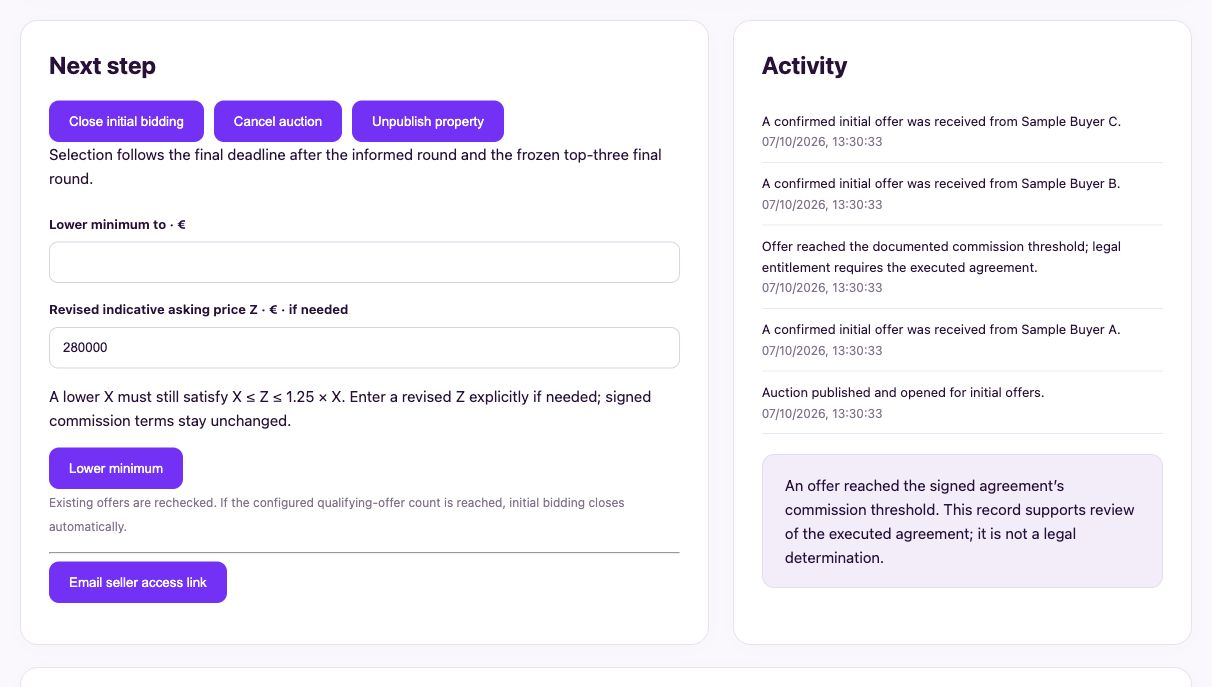
Where the campaign permits an explicit minimum reduction during Round 1:
- Open the property management or seller access page.
- Enter a lower whole-euro minimum within the reciprocal range shown.
- Keep the published target fixed. The target must still be at most 125% of the revised minimum; a reduction that breaks this boundary is rejected.
- Record the reduction using Lower minimum. Existing confirmed offers are rechecked and the change is audited.
Minimum changes do not rewrite the signed commission threshold snapshot or other signed agreement terms. They do not reset the original closing rule or allow new initial submissions from an existing buyer.
Earlier campaigns keep their own review process. Some send a seller review notice after 15 days without a qualifying offer and give three days from successful email dispatch to lower prices or cancel. Use that campaign’s actual deadline and controls, including any expressly permitted asking-price revision. Failed or bounced notices do not silently start or continue a cancellation deadline.
18 If you need to pause
Use Unpublish property, then confirm.
| Action | Effect |
|---|---|
| Unpublish a running auction | Hides the buyer page, blocks new bids and pauses round timers |
| Publish property again | Resumes the remaining time; deadlines move by the pause duration |
| Cancel auction | Ends the auction unsuccessfully |
| Unpublish a concluded auction | Hides the page and preserves the result |
Unpublishing does not unlock editing. It also does not cancel or delete the auction. A future provider-controlled refund clock must remain independent of publication; pausing a property must not postpone an owed refund. Trustap is unavailable, so no such payment clock is active. Owner activation and property publication are separate controls; deactivating an owner account does not by itself hide that owner’s published properties.
Final checklist
For help, contact contact@myoffer.properties and include the property title and the step number from this guide.